2.1.1 Keyboard
In some parts, there are interactive objects that are impossible to use with keyboard only. This affects keyboard users as it prevents them from interacting with functions.
Examples
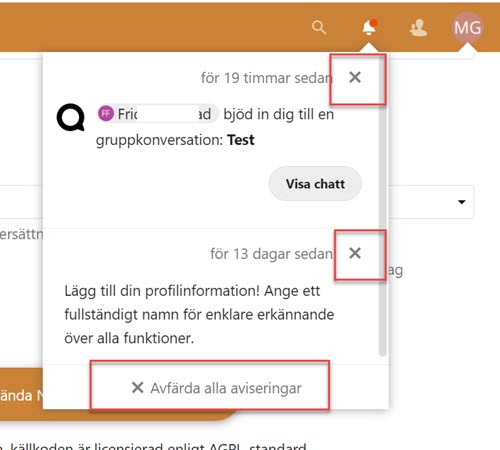
The close buttons in the notification area, shown in the screenshot below, can’t be reached with the keyboard.
Filer app
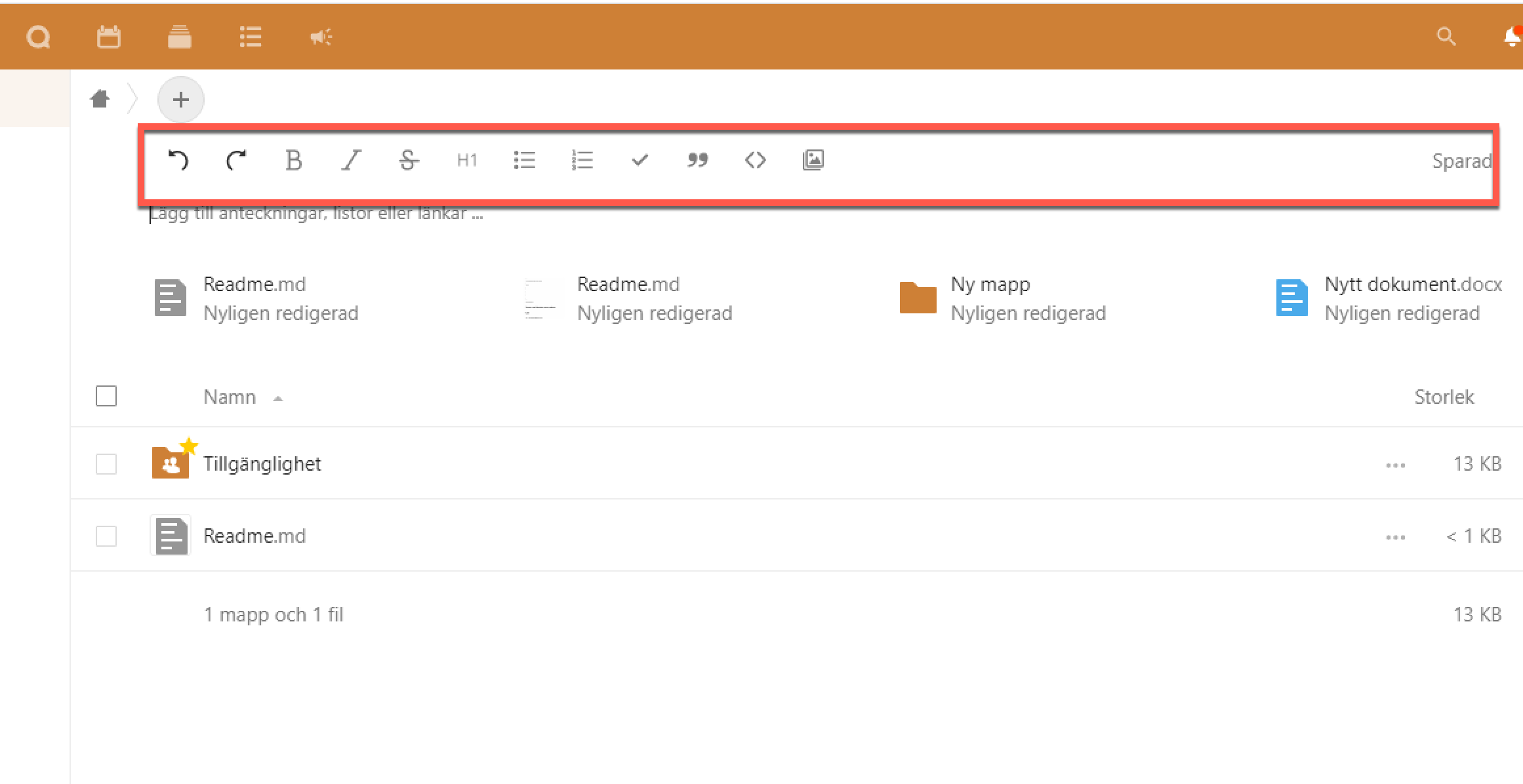
In the Filer app an editing field is integrated into the page content. There’s a list of text formatting tools that only partly be used with the keyboard. These tools are only shown when the user has keyboard or mouse focus in the text field, meaning that if the user navigates to these tools only using the keyboard they disappear.
So, these tools aren’t usable with keyboard navigation.
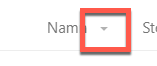
The filtration settings aren’t usable with keyboard navigation. They are possible to reach using a screen reader, but that doesn’t help user who navigate with the keyboard without using a screen reader.
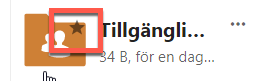
The favorite icon is not reachable with keyboard. Like above it is possible to use with a screen reader.
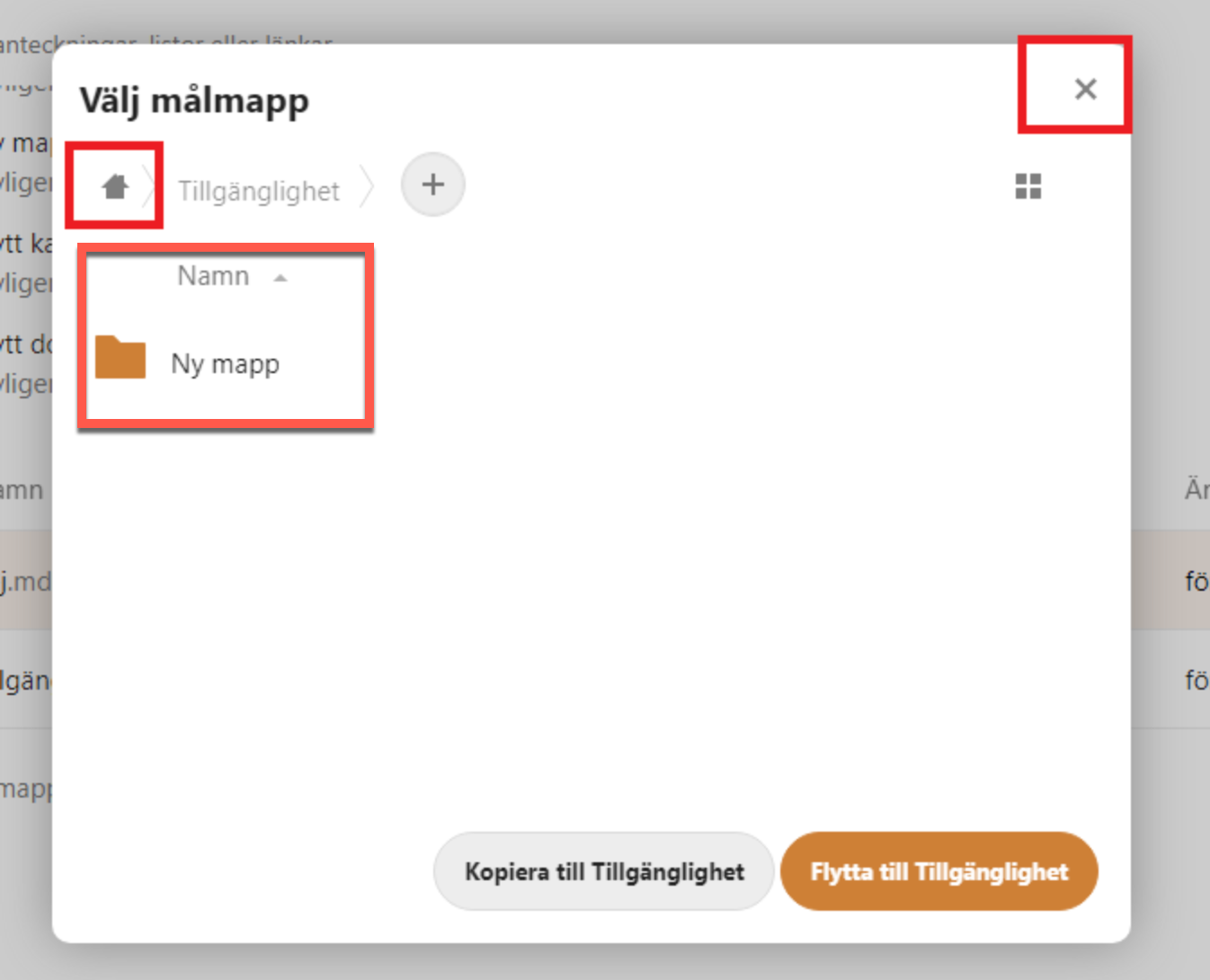
A modal window is used for copying and moving folders. Links in the tree-view on the left, as well as the button for closing the modal, aren’t possible to reach with keyboard navigation.
Kalender app
The following areas aren’t possible to reach with keyboard navigation, even while using a screen reader:
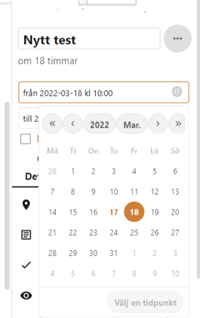
Datepicker
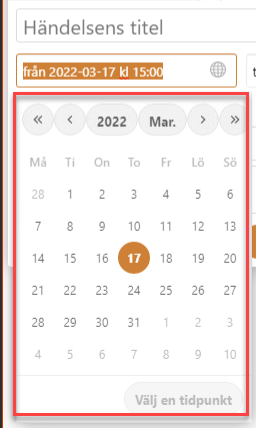
It’s not possible to navigate into the date picker and select a date.
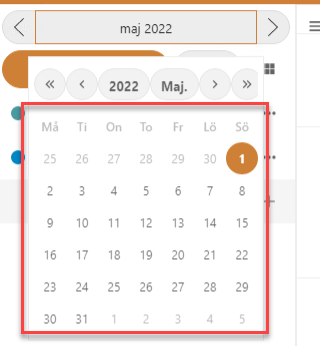
This is true for any place where the date picker is used, for instance when it’s expanded in from the side in the fly-out menu. The calendar area isn’t possible to reach using the keyboard here.
Day view
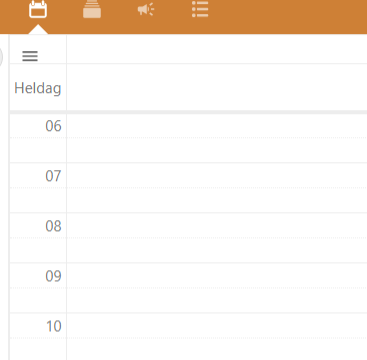
The day view is built using a table, not interactive elements. It’s not possible to navigate into it to add an event using the keyboard.
Week and month views
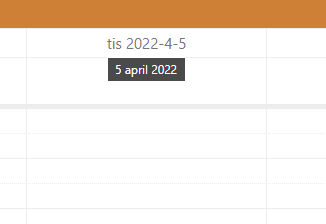
It’s possible to activate the day view from the week and month views using the keyboard, but as mentioned above you can’t do anything in the day view after that.
Day, week and month views
It’s more difficult to add a new event in the day, week and month viewers using the keyboard than it should be.
Mouse users can add a new event directly from each view, but keyboard users can only use the button “New event” in the side menu.
Fly-out
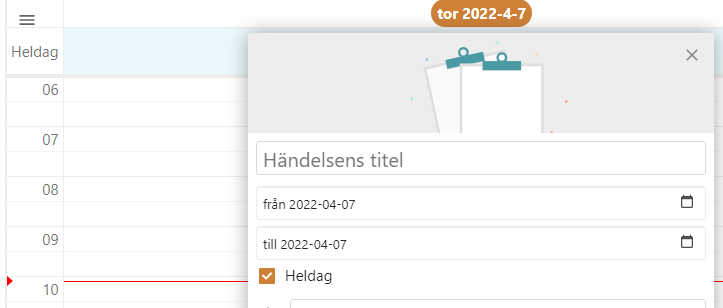
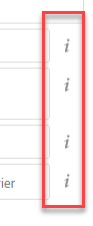
Flyouten: Det finns knappar som inte kan nås med tangentbord. Det är tooltips som ger extra information om inmatningsfälten eller formaten.
In the fly-out that can come out from the side there are information buttons that give extra information about the input fields or formats. But they can’t be reached with the keyboard.
Deck app
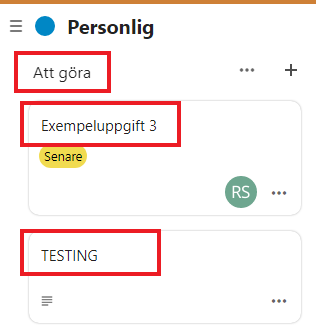
It’s not possible to change the name of lists and cards when using the keyboard. There are no alternative ways of doing so that could be used instead.
When using a screen reader it’s possible to do, the user is told that they can activet the object, but there are not interactive elements here for keyboard users.
This is also true for the detail page for a card, located in the fly-out.
Talk app
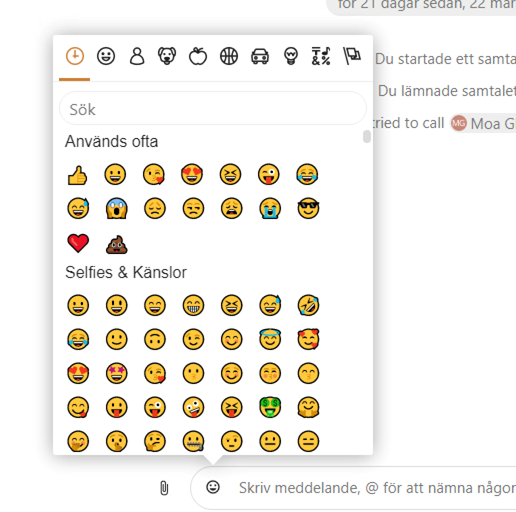
It’s possible to open the emoji menu, but it’s not possible to navigate into it and select an emoji. They’re built using span-elements and aren’t interactive for keyboard users.
It’s possible to navigate to and use the search field, but not to select any of the found emojis.
It works when using a screen reader.
Formulär app
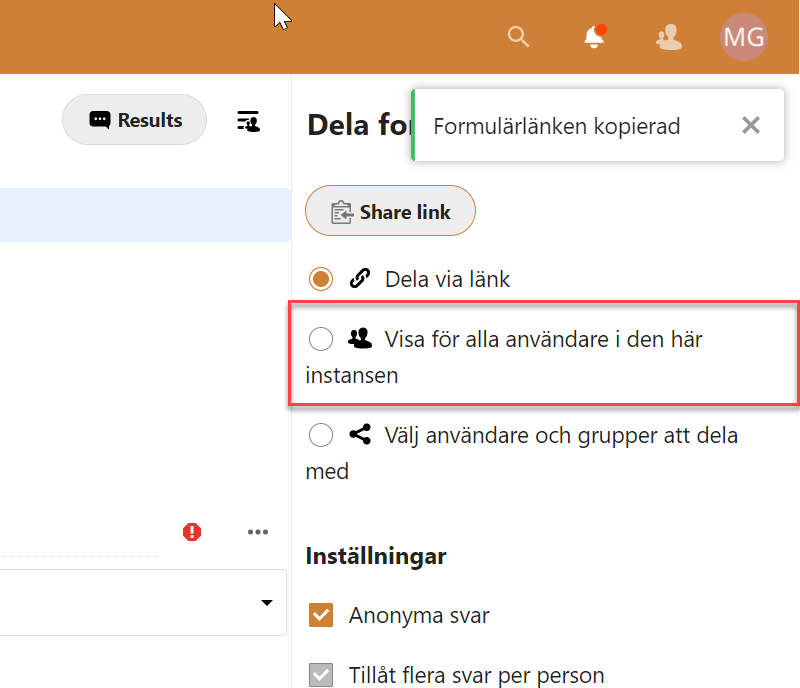
Keyboard users can’t make any changes to an already set up form.
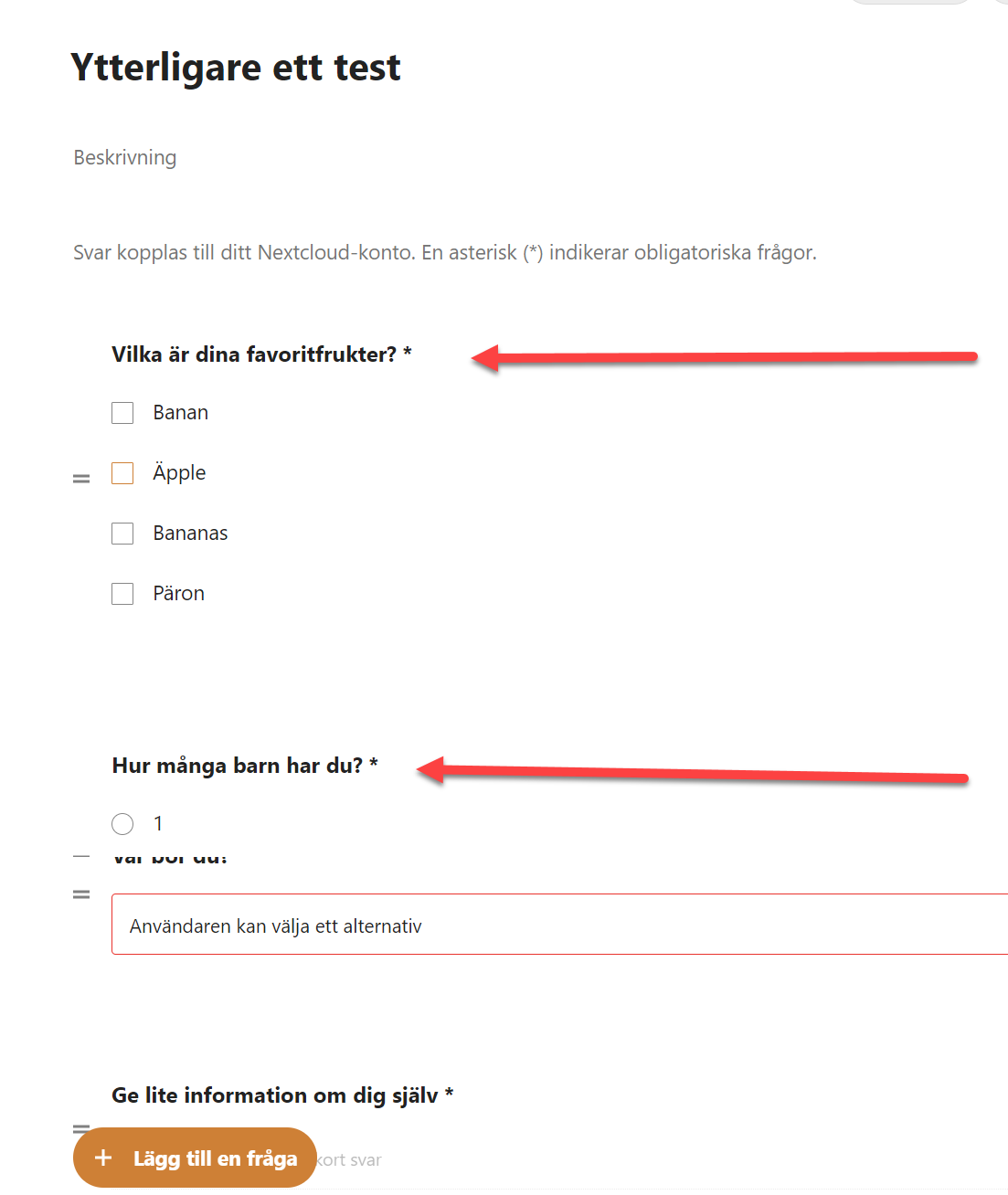
It’s not possible to reach the radio-button “Visa för alla användare i den här instansen” with the keyboard.
Aktiviteter app
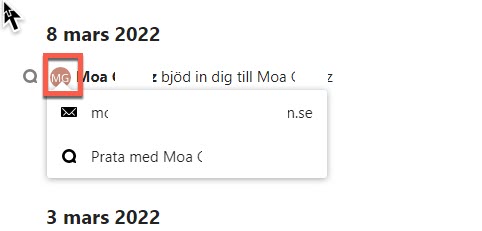
When activating the user icon a menu is opened up underneath it, this menu can’t be reached using the keyboard.
Examples from Meddelande app
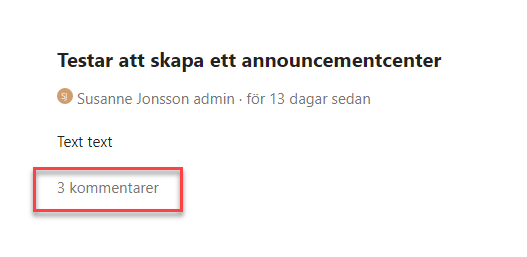
The text showing the number of comments is clickable and opens a menu on the right side. Unfortunately it’s not possible to reach or activate it with the keyboard. It’s not really clear visually that it’s interactive.
This must be possible to use with the keyboard, but making it visually more clear that it’s interactive would benefit all users.
Why keyboard interaction don’t work depends on different things. In general, we can see that noninteractive element have been used. For example a div-element.
To make keyboard interaction available:
- Use standard html-elements for interactive objects.
- If needed, add tabindex=“0”, proper wai-aria roles and neccessary script to make sure non-native interactive elements work for keyboard and screen reader users. But it’s better to use native interactive elements when possible.